What is a skill?
A skill is a small folder of instructions and reference documents (sometimes with a helper file or two) that teaches your AI agent how to do a specific job well: filing a tax return, drafting a will, reviewing a web app for security holes, and so on. Claude Desktop, ChatGPT Desktop, Cursor, Hermes, OpenClaw, Meta Muse, Grok Bot, and ChatGPT dots can all use these folders, with slightly different install and reload steps.
You don't need to read the files yourself. The AI reads them for you and then uses them to do the job. Think of a skill the way you'd think of hiring a specialist for an afternoon: you describe what you want, they already know the checklist.
What you need before you start
- A paid Jeffrey's Skills.md subscription. $20/month, no free tier. Sign up on the pricing page. Sign-in is via Google — there's no separate email/password account, so you'll just need a Google account you're happy to associate with the subscription.
- One of these AI apps. The first five run on a Mac, Windows, or Linux computer; Meta Muse and Grok Bot run on their own cloud computer, so any device works:
- Claude Desktop, the Anthropic app.
- ChatGPT Desktop, the OpenAI app. Paste install prompts into Codex inside it, not a regular chat: Codex is the part that can save files on your computer.
- Cursor 3.0+, for installing into a specific Cursor workspace.
- Hermes, if that's the AI desktop app you already use.
- OpenClaw, for local OpenClaw skill folders and agent skills.
- Meta Muse, Meta's personal agent, in the Muse app or at muse.ai.
- Grok Bot, xAI's always-on agent app.
- ChatGPT dots, if your dot has a computer connected to it: the skill is installed on that computer.
Pick the one you already use. Claude Desktop is the simplest place to start — the rest of this guide's screenshots are all from Claude Desktop, and it's the only one with a one-click “auto mode” that prevents a marathon of permission clicks per install.
- A few minutes. Installing a skill takes about as long as pasting a message and waiting for the AI’s reply — usually well under a minute.
On an iPhone or Android phone you can read the catalog, but for the desktop apps the install step has to happen on a computer because the skill folder lives on that computer. Meta Muse and Grok Bot are the exception: they keep skills on their own cloud computer, so you can do the whole install from your phone.
How to install a skill you bought
The whole flow is: open the skill's page, click a button, pick your AI app and OS, copy the text it gives you, paste that text into your AI app, and approve the local actions it asks for (or, on Claude Desktop, click one button to pre-approve them). Here is each step.
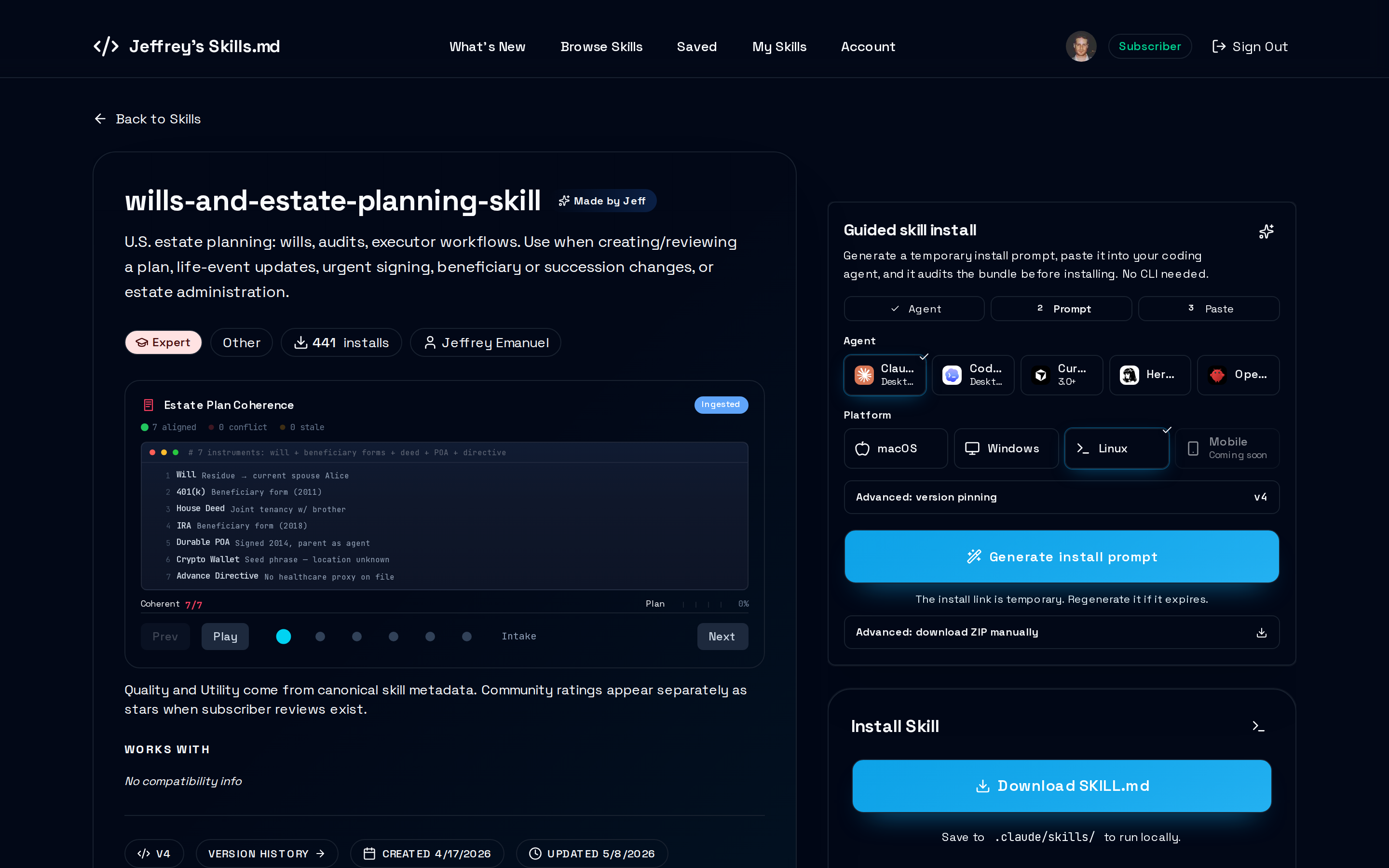
1. On the skill page, click “Generate install prompt”
From the skills catalog, click into the skill you want. Make sure you're signed in with the same account that holds your subscription, since the install card only appears for paying subscribers. On the right-hand side of the page there's a card titled Guided skill install. Pick your agent (Claude Desktop, ChatGPT Desktop, Cursor, Hermes, OpenClaw, Meta Muse, Grok Bot, or ChatGPT dots) and your operating system (Meta Muse and Grok Bot don't need one), then press Generate install prompt.
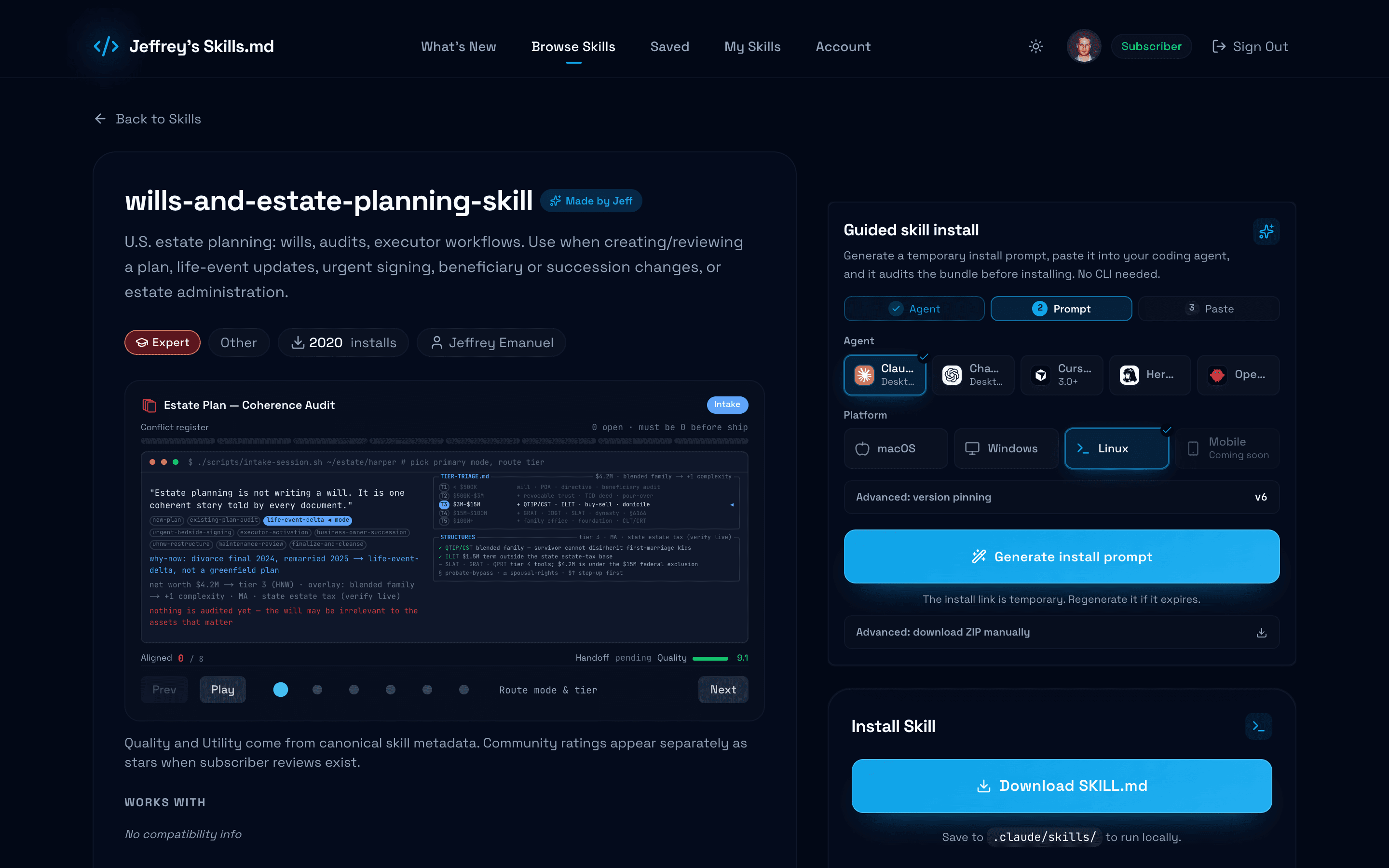
The skill detail page with the install sidebar card visible on the right. (Tap the image to view full-size.) 2. Copy the generated prompt
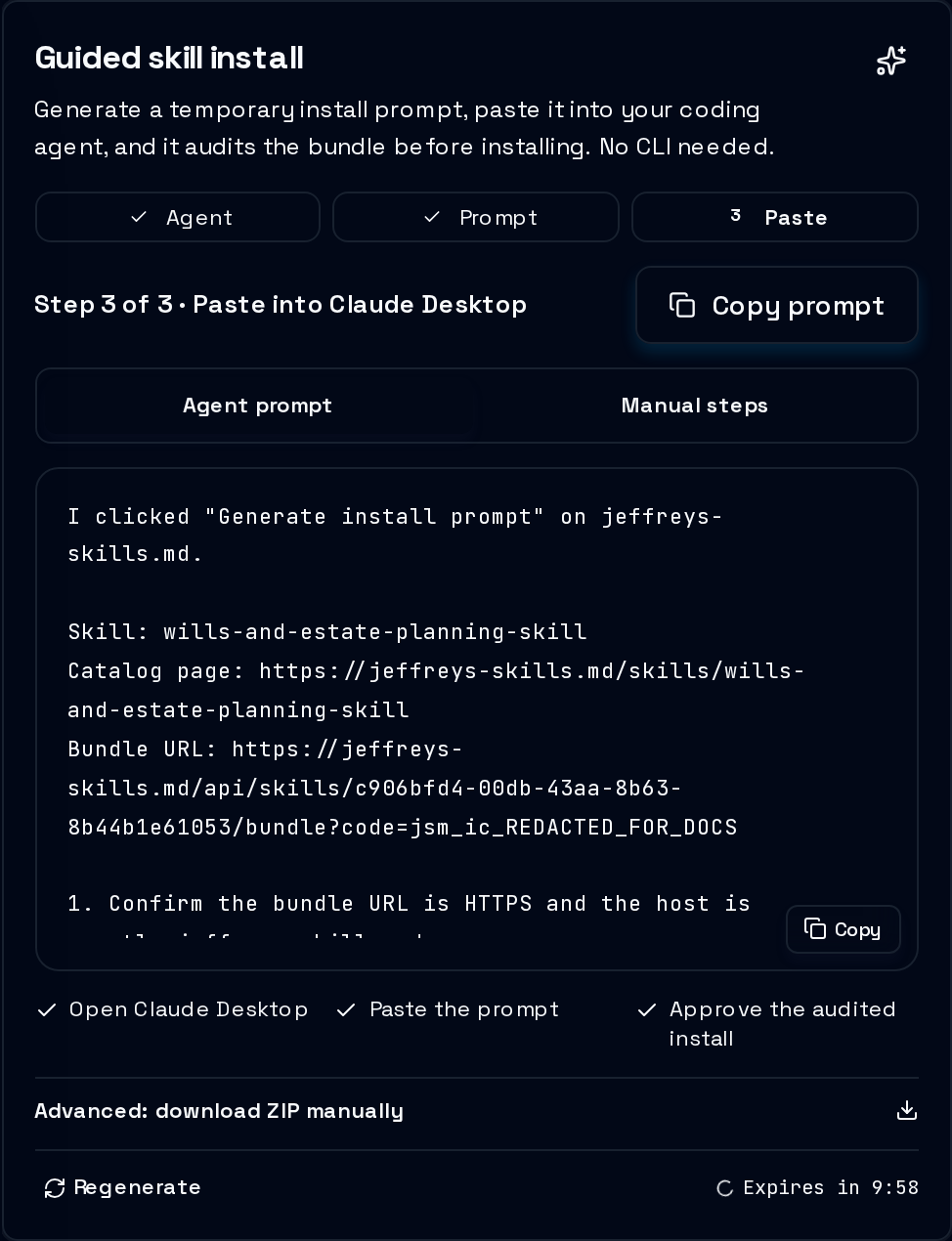
A block of text appears in the card along with a countdown. Press the big Copy prompt button at the top-right of the install card (not the smaller one inside the text area). It’ll flash a check mark to confirm. The entire prompt is now on your clipboard. If the link inside the prompt expires before your AI app gets to it, click Regenerate at the bottom-left of the card to mint a fresh one.
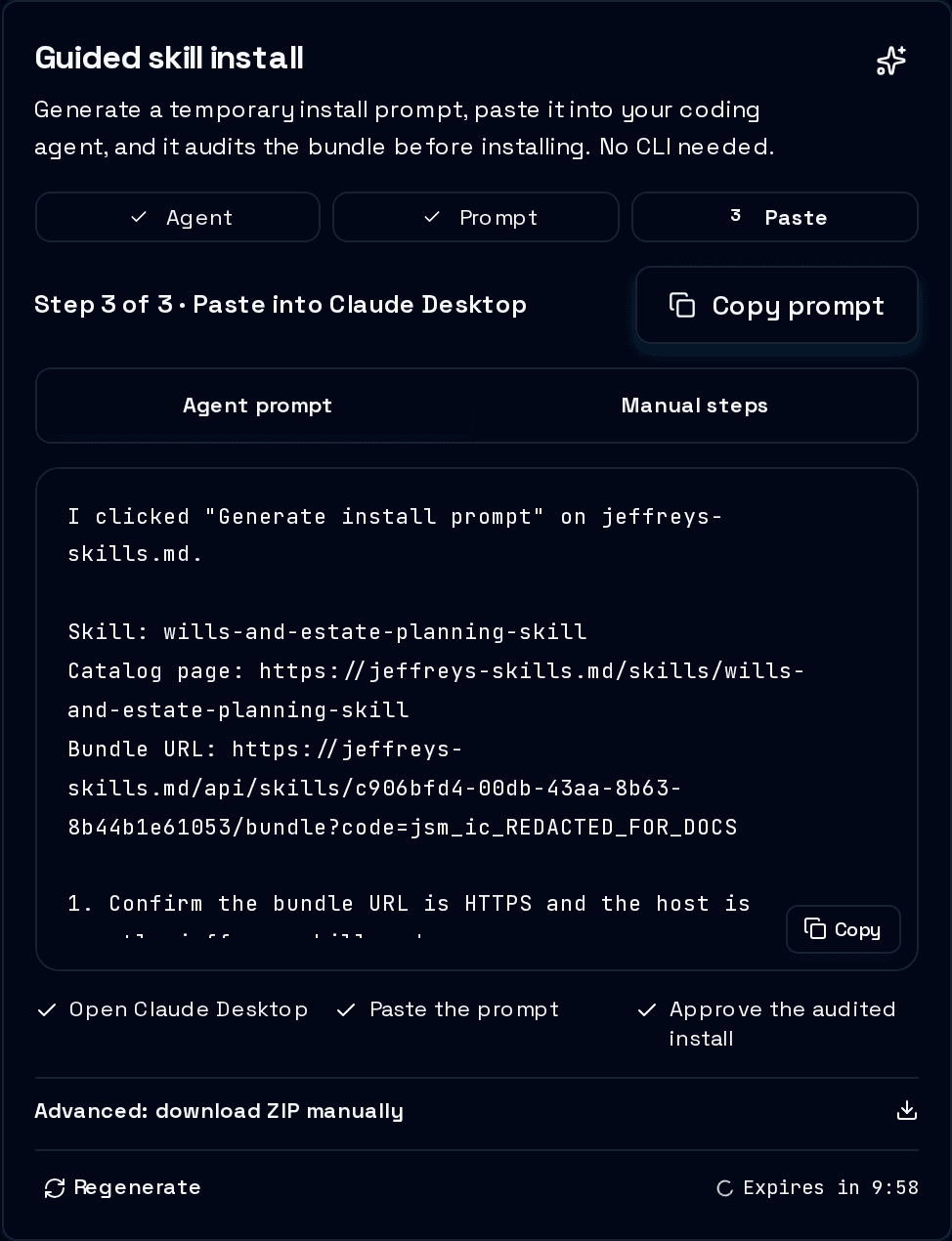
The install card in the ready state. (We've blanked out the install code in this screenshot — in a real install it's filled in for you automatically.) (Tap the image to view full-size.) 3. Paste it into your AI app
Open the standalone Claude Desktop app — the one you launch from your Mac's Applications folder or your Windows Start menu — not the website at claude.ai. The install needs a real local app because the skill has to land in a folder on your computer. In ChatGPT Desktop, switch to Codex and start a new chat there; a regular ChatGPT chat can't put files on your computer. Paste the prompt into the chat input and hit return. From here the AI takes over — what happens next depends on which app you picked.
Meta Muse and Grok Bot work differently: each installs skills on its own cloud computer, so paste the prompt into a chat in the Muse app (or muse.ai) or the Grok Bot app, from any device. If the app asks to let the agent reach jeffreys-skills.md, allow it. For ChatGPT dots, paste into your dot's chat in ChatGPT, not a regular chat; your dot does the install on the computer you connected to it, which has to be on with ChatGPT open.
4. Enable auto mode (Claude Desktop only)
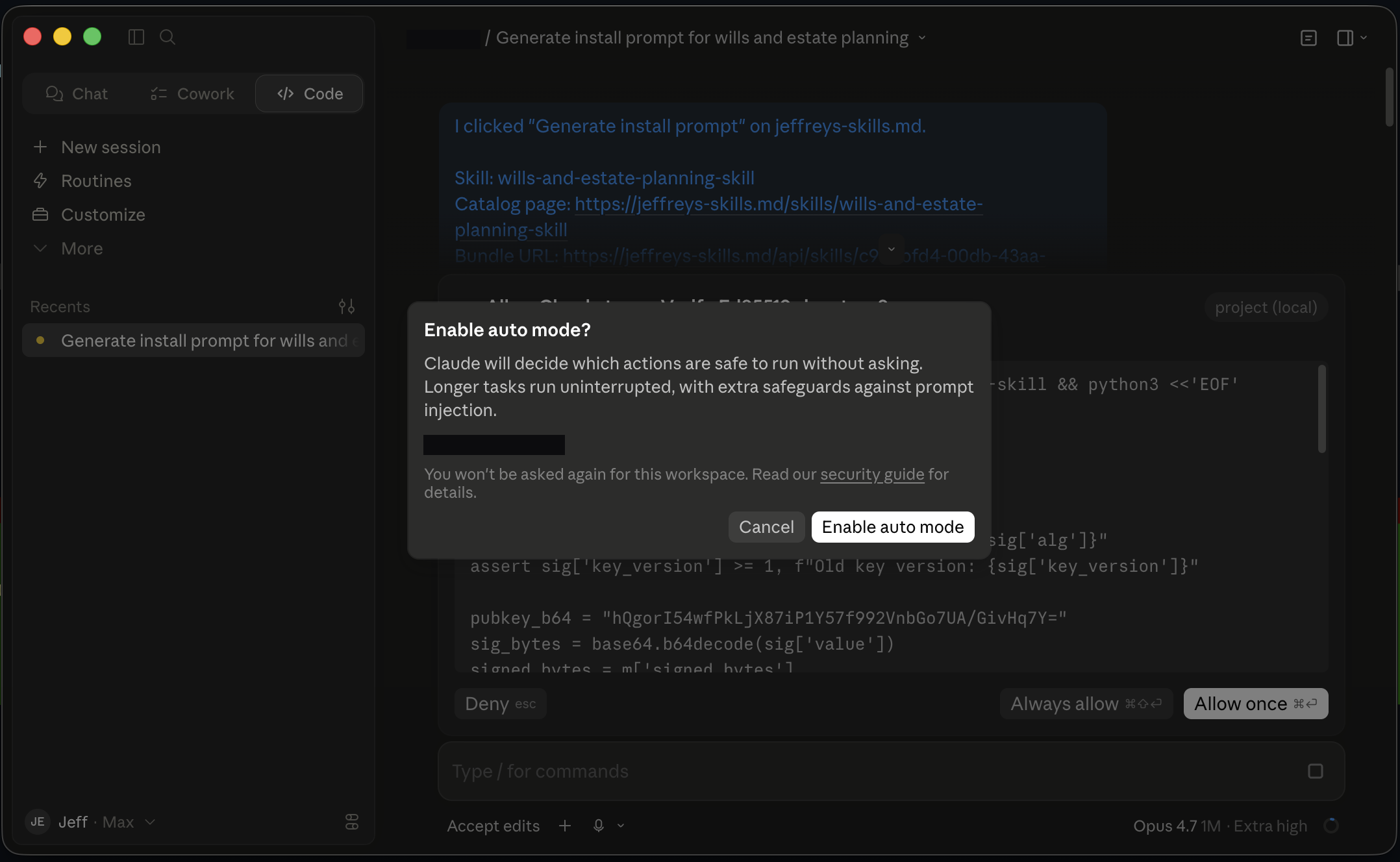
Right after you hit return, Claude Desktop pops up a dialog asking whether to enable Auto mode. The dialog shows a folder path on your computer (on a fresh install that's usually your home folder — something like
/Users/yournameon a Mac orC:\Users\yournameon Windows). That's the folder Claude Desktop is asking permission to work in. Click Enable auto mode. That one click lets the AI run the install end-to-end — download, extract, place files, preview — without stopping to ask permission at every single thing it does. The same safety checks still run in the background. Without auto mode, every skill install becomes a marathon of four or five Allow clicks in a row. You can turn auto mode back off later — open Claude Desktop’s Settings and look for an Auto mode or Permissions section.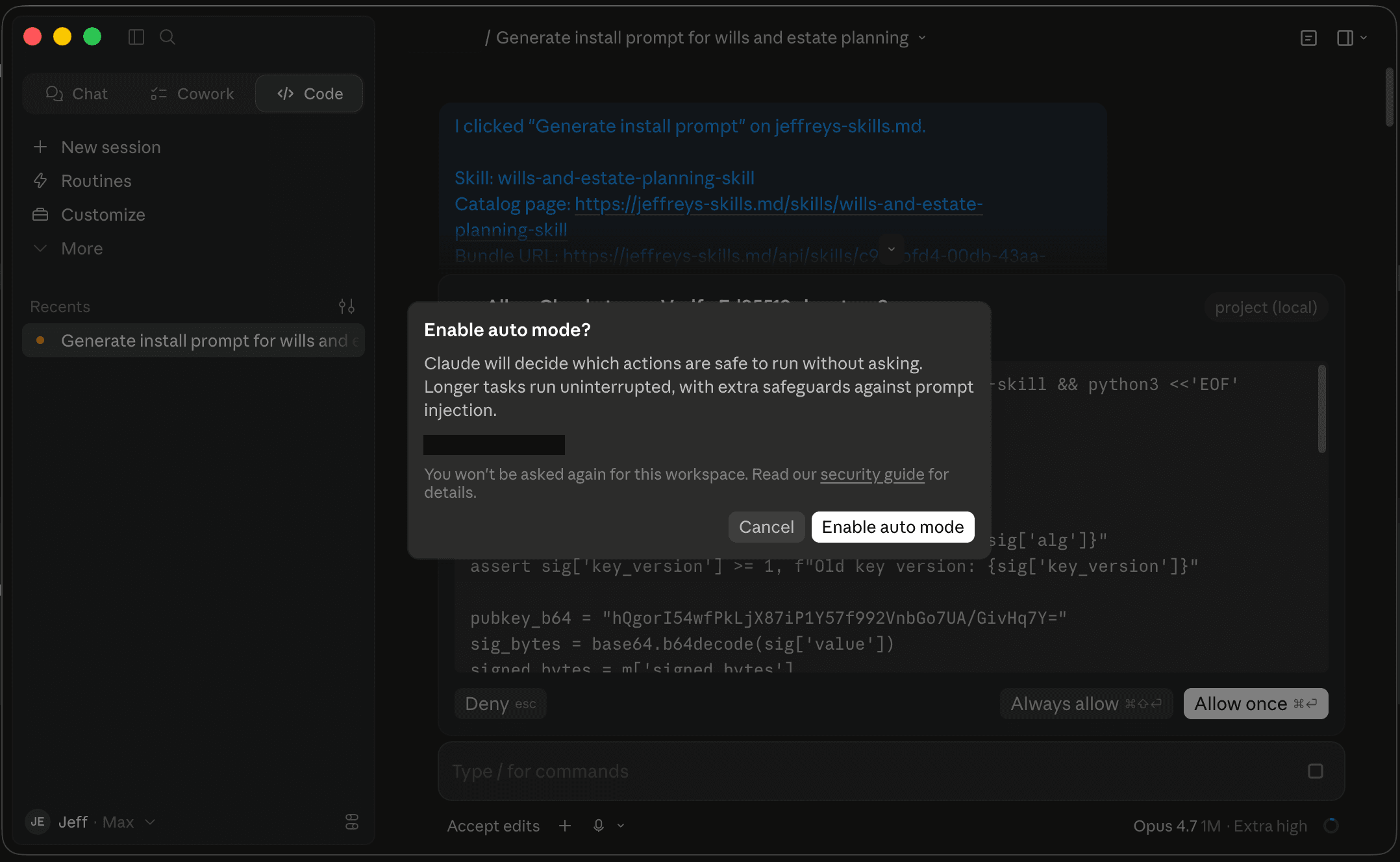
Click Enable auto mode. The dialog only appears the first time; you won't be asked again for that folder. (Tap the image to view full-size.) Don't see the auto mode dialog?
A few things can hide it: you've used Claude Desktop before in this folder and already answered the question, or your version of Claude Desktop doesn't prompt for it. You have two options. Either turn auto mode on from Claude Desktop's Settings (look for an “Auto mode” or “Permissions” section), or just click Allow on every individual approval card you see — that’s the manual path described in the next step.
Using a different AI app? (ChatGPT Desktop, Cursor, Hermes, OpenClaw, Meta Muse, Grok Bot, ChatGPT dots)
Auto mode is a Claude Desktop feature; the other apps don't have an identical “one-click pre-approve” button. Skip this step. In the next step you'll see what each individual approval prompt looks like — click Allow on each. There are usually four or five in a row.
5. Wait for the install to finish
With auto mode on, the AI now works on its own — download the skill, extract it, put the files in the right folder, and show you a preview of what it just installed. Each step is still being checked for safety in the background; auto mode just spares you from clicking Allow on every one.
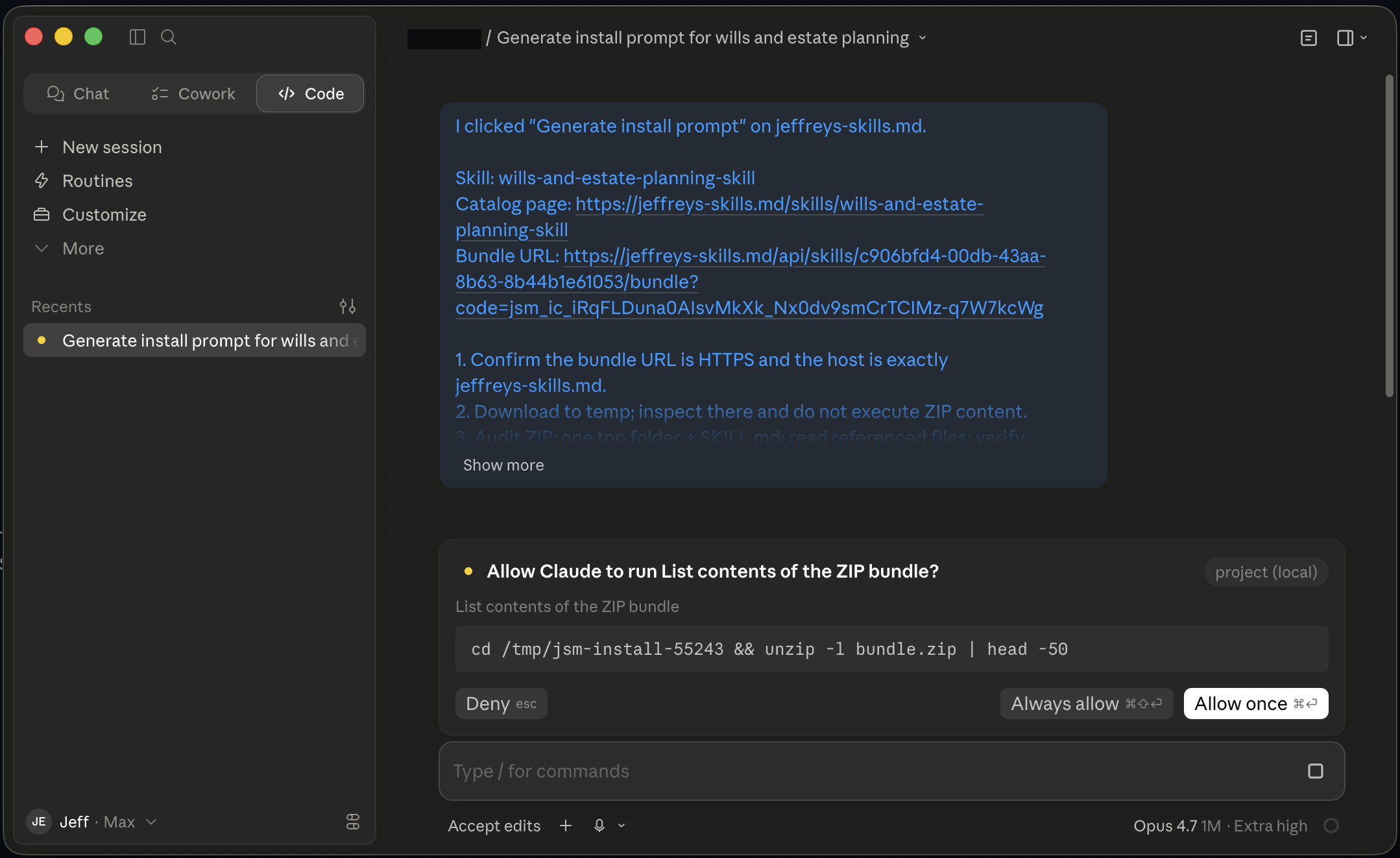
To give you a sense of what auto mode is sparing you from, this is what one of those checks looks like without auto mode — the same dialog you’d have to click Allow on for every single step:
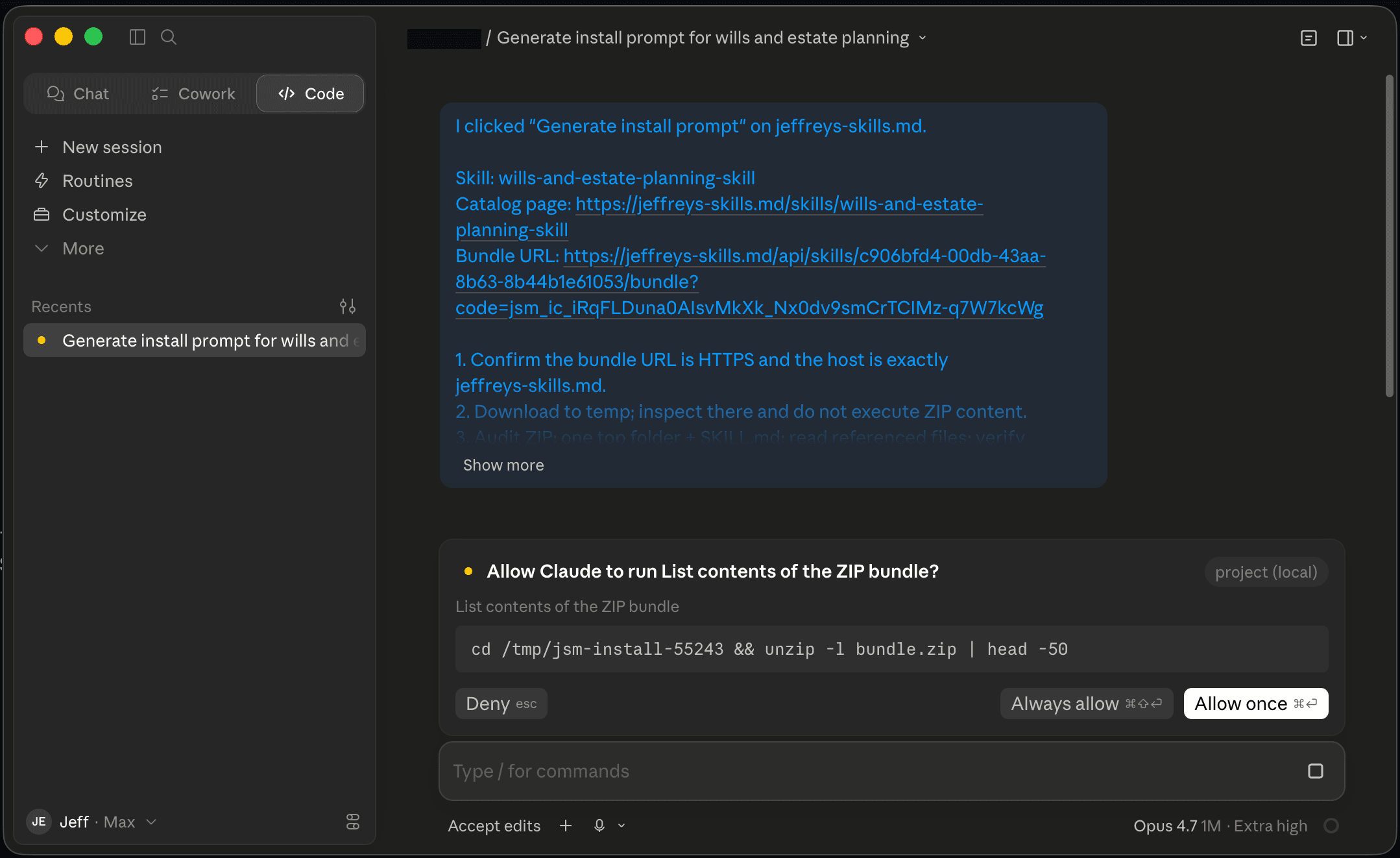
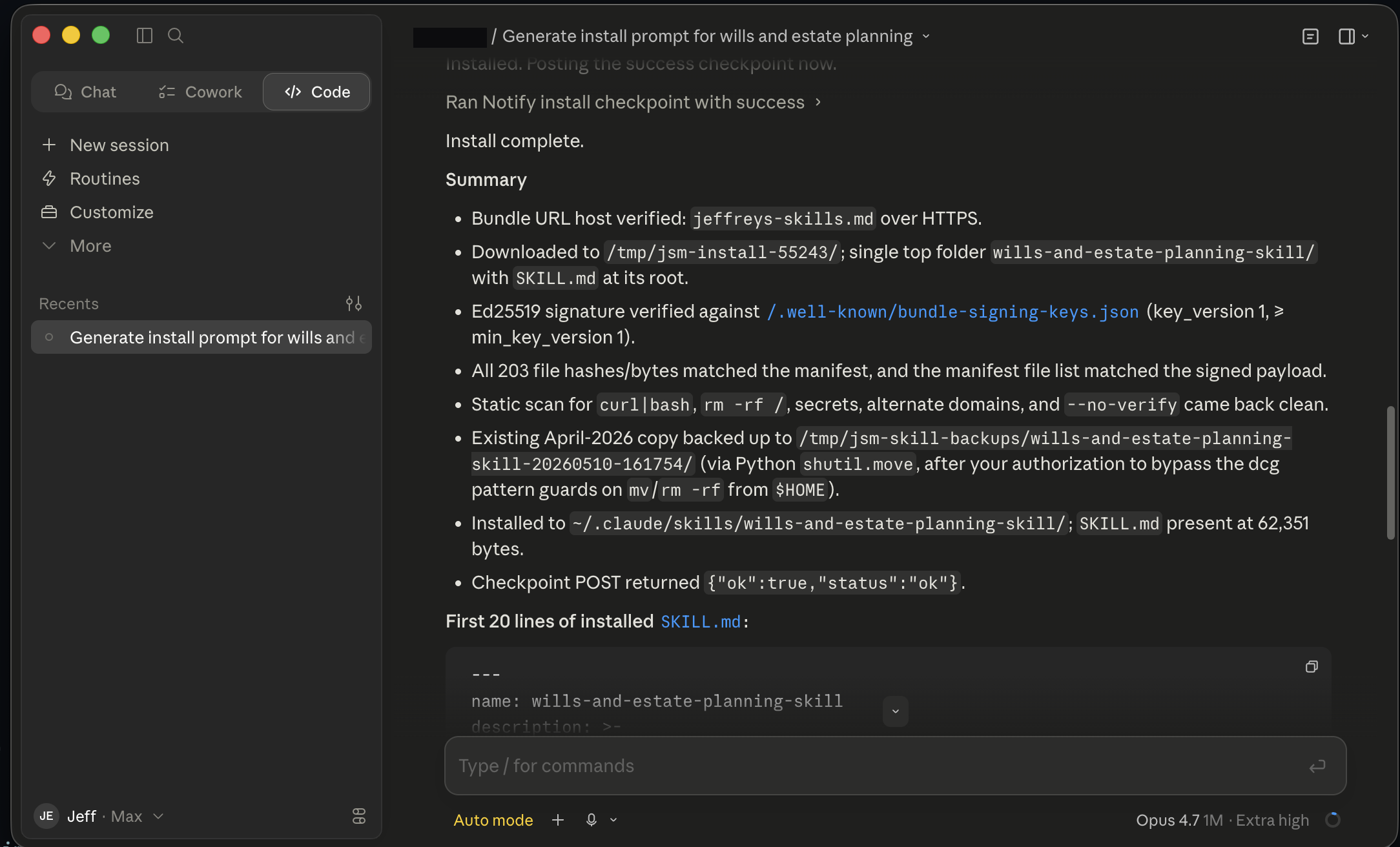
What you'd see for every step without auto mode. With auto mode on, you don't see this — the AI proceeds and the safety check runs in the background. (Tap the image to view full-size.) When everything finishes, you'll see a summary: where the skill landed on disk, the safety checks the AI ran (that it talked to the right website, that the files weren't tampered with, that they were signed by us, and that nothing inside looks dangerous), and the first few lines of the skill's instructions file (called
SKILL.md). That summary is your “yes, it worked” signal — you don't have to verify anything by hand.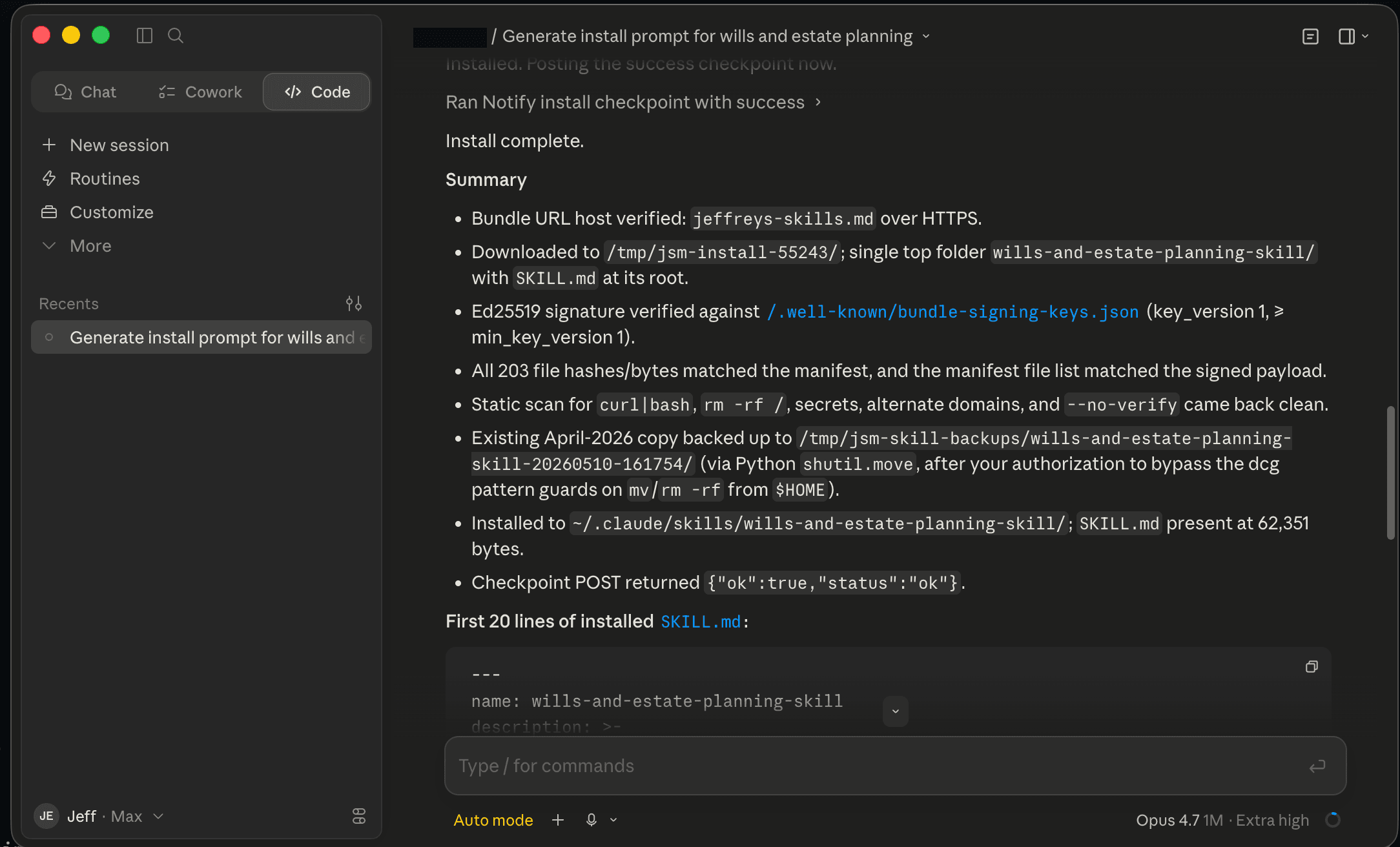
A clean install: the AI confirmed the download was authentic, placed the files where Claude Desktop looks for skills, and showed the first lines of the skill's instructions file (SKILL.md). (Mac example — Windows shows the same screen with Windows-style paths like C:\Users\yourname\.claude\skills.) (Tap the image to view full-size.) 6. Start using the skill
The skill is now on your computer, but the skill picker (the autocomplete menu your AI app shows when you type a slash) caches its list of installed skills, so the app may need a refresh to notice the new one. Find your app below:
- Claude Desktop: press Cmd + Shift + P on Mac or Ctrl + Shift + P on Windows or Linux. A small search popup appears at the top of the window — type Reload skills and press return.
- ChatGPT Desktop: quit the app completely and reopen it.
- Cursor / OpenClaw: open a new chat or session in the project where you want the skill available.
- Hermes: nothing to do — Hermes picks up new skills the next time you start it.
- Meta Muse: start a new chat and ask Muse to use the skill by name.
- Grok Bot: type a slash and pick the skill. If it isn’t listed, turn it on under Settings → Plugins → Yours.
- ChatGPT dots: nothing to do for new tasks. If your dot doesn’t see the skill, quit and reopen ChatGPT on the connected computer.
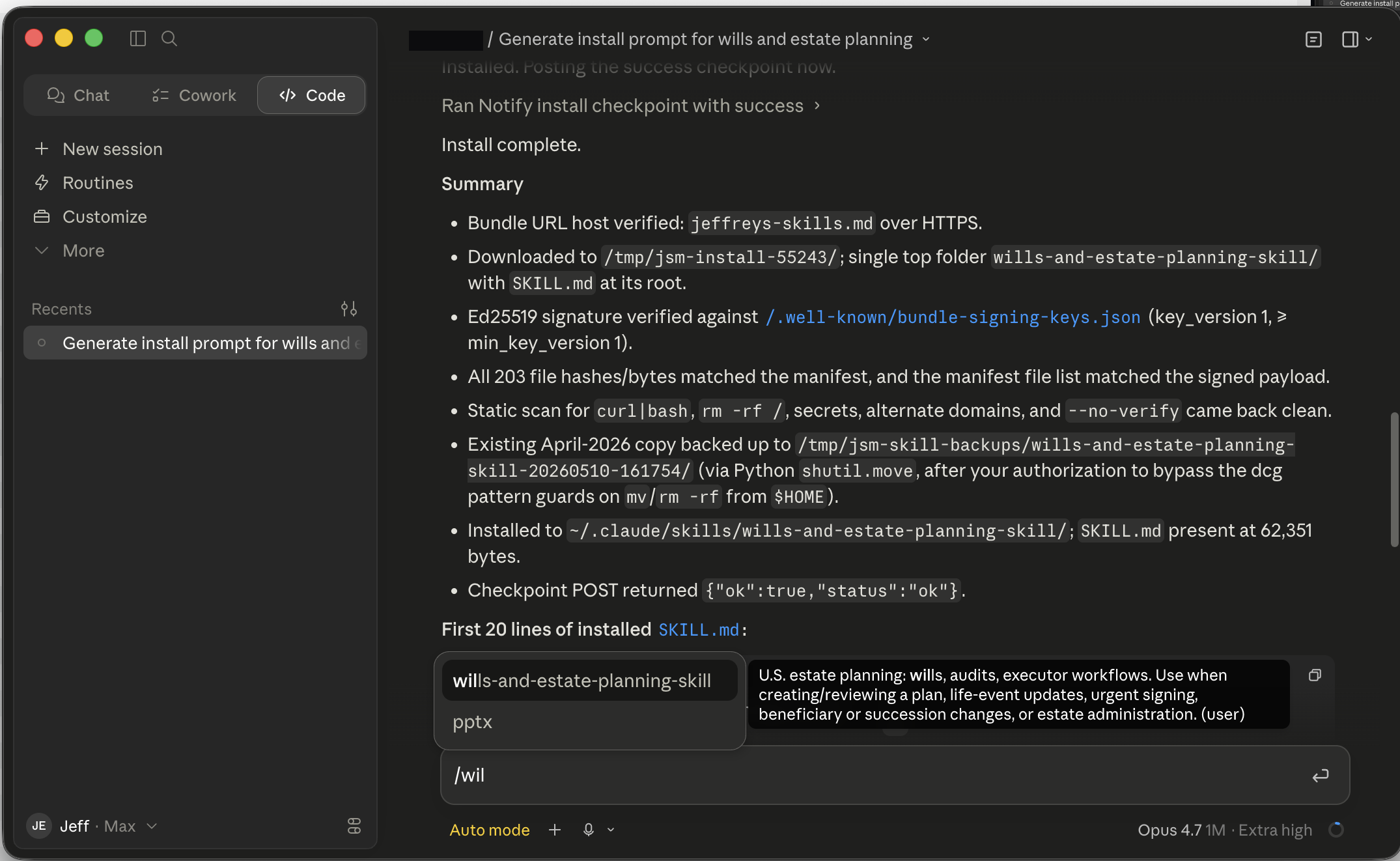
Then, in a new chat, type a slash (
/) followed by part of the skill name to bring up the picker. Your newly installed skill appears with its description and a (user) tag indicating it’s one you installed.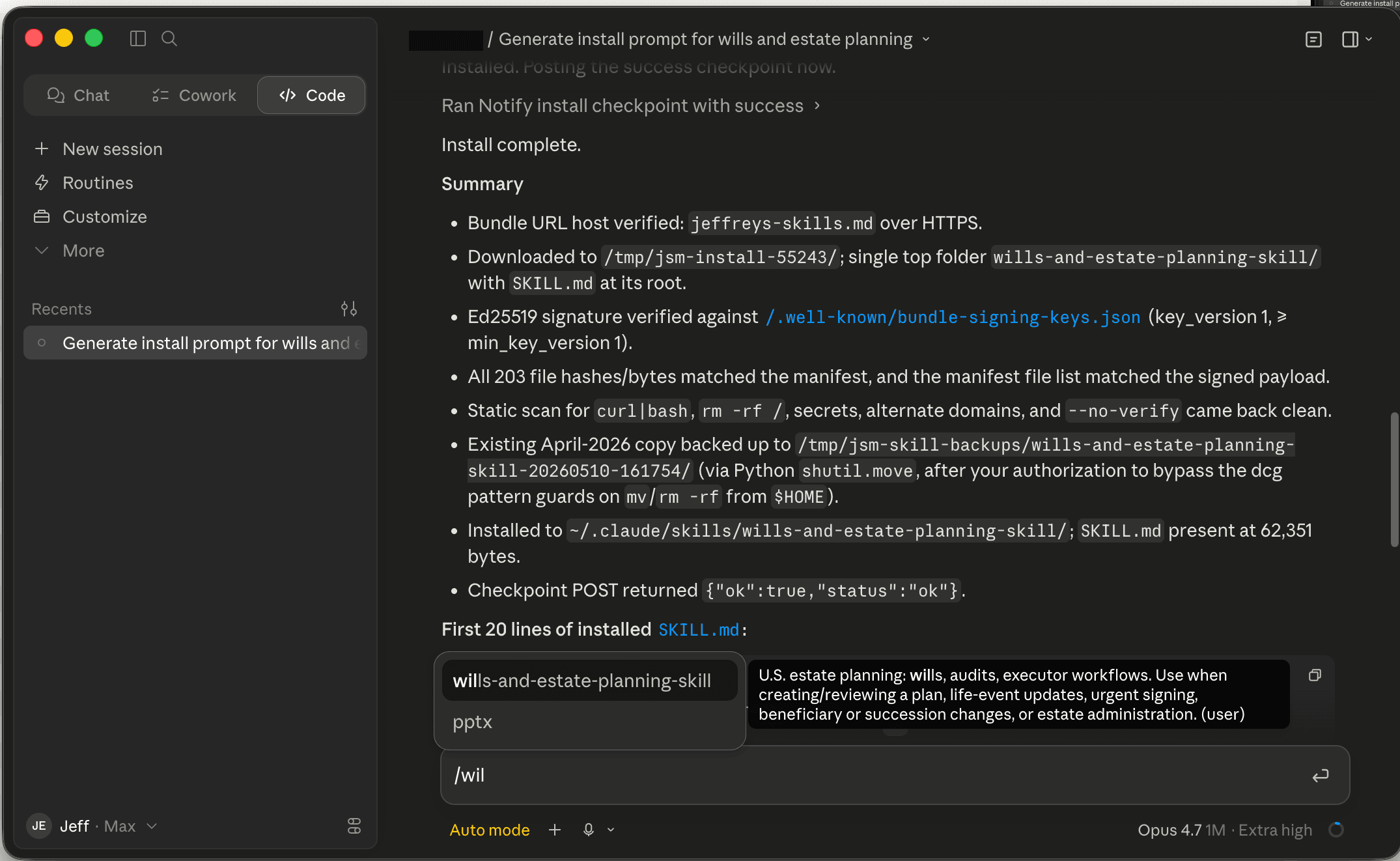
The picker after install: typing /wil brings up the wills-and-estate-planning skill, with its description and a (user) tag. (Tap the image to view full-size.)
What if something goes wrong
The install link expired
The install link inside the prompt is temporary. If the countdown ran out, or if your AI app already used the link and you're trying again on another computer, head back to the skill page and press Regenerate to mint a fresh one. Each new prompt replaces the old one.
The AI app said it couldn't run shell commands
You're probably pasting the prompt into a web chat or a sandboxed environment instead of the AI desktop app you picked. The install needs a real local app because the skill has to land in a folder on your computer. Download Claude Desktop or open the AI desktop app you picked and try again from there. In Claude Desktop specifically, use the Code section (the </> icon), not a regular chat, and pick a folder when it asks. Meta Muse and Grok Bot are different: they run the commands on their own cloud computer, so if one of them says this, ask it to use its terminal and try again.
The skill or project rule isn't showing up
The cached list of skills in your AI app may not have refreshed yet. After installing a skill, follow the reload line in the generated prompt. In Claude Desktop, press Cmd + Shift + P on Mac or Ctrl + Shift + P on Windows or Linux to open the small search popup, type Reload skills, and press return. In ChatGPT Desktop, quit the app fully and reopen it. In Cursor or OpenClaw, open a new chat or session in the project. In Grok Bot, turn the skill on under Settings → Plugins → Yours; in Meta Muse, ask for it by name in a new chat. If that still doesn't work, the install probably failed silently; try running the prompt again with a fresh link.
Something else — nothing in this list matches
Email support@jeffreys-skills.md with the name of the skill you were installing and whatever your AI app said back to you. Include the exact error if there was one. We answer every message.
What does the code in the URL do?
The prompt you paste contains a link that looks something like jeffreys-skills.md/api/skills/…/bundle?code=…. Three plain-English facts about that code:
- It's tied to your paying account. The server only hands out codes to subscribers who are signed in. Someone else can't reuse it.
- The link is temporary. It gives you enough time to paste it into your AI app, then it stops being useful if you close the tab and forget about it.
- Each link is for one download. After your AI app uses the link, click Regenerate on the install card if you need to install the same skill on a different computer.
That combination, yours, temporary, and scoped to one download, means you can safely paste the prompt into the AI app you picked. If someone copies the URL out of your screen, by the time they try it, either your app has already used it or it's expired.
Which skill should I try first?
If you don't know where to start, here are four. The first two are pure plain-English — they need zero technical background. The last two are aimed at people running a small online business: still navigable without coding skills, but you need a website or app you can drop the AI's suggestions into.
Was this guide helpful?
Ready to try one?
Open the catalog, pick a skill, and look for the install card on the right side of its page. The install process itself is designed to be faster than finishing this paragraph.